This Bluesky video downloader saves videos from Bluesky posts in up to 1080p. Paste a bsky.app post link and the Bluesky video download is built from the post’s stream into one MP4.
Saving videos from Bluesky posts
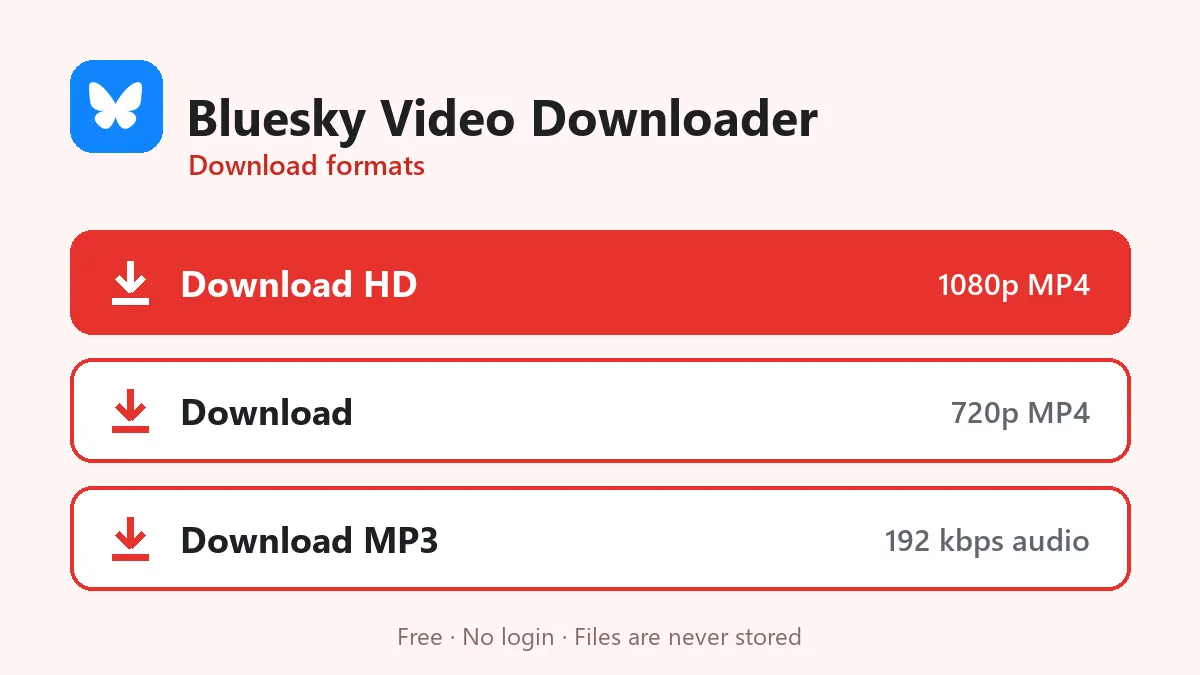
Bluesky stores uploaded videos as HLS streams in several sizes. When you paste a post link, our server reads the post, finds the video playlist and picks two versions: the largest for Download HD (1080p when the upload was full HD) and 720p for Download. The stream pieces are copied into one MP4 file without changing the picture.
Features of this Bluesky video downloader
- Bluesky HD download up to 1080p, plus a 720p option.
- Works with handles and custom domains in the link.
- Bluesky to MP3 for the audio.
- No account needed for public posts.
The link format
A Bluesky post address has three parts:
https://bsky.app/profile/bsky.app/post/3l3vgf77uco2g
profile/bsky.appis the account handle (it can also be a custom domain likename.com).post/3l3vgf77uco2gis the post’s ID.
To copy it, tap the Share icon under the post and choose Copy link to post. In the web app you can also copy the address bar after opening the post.
Things to know
- Posts that the author restricted to logged-in users cannot be downloaded.
- If a post quotes another post with a video, open the quoted post and copy its own link.
- GIFs posted through Tenor are links to Tenor, not Bluesky videos, and will not work.
Bluesky videos belong to the people who posted them; ask before you re-upload.
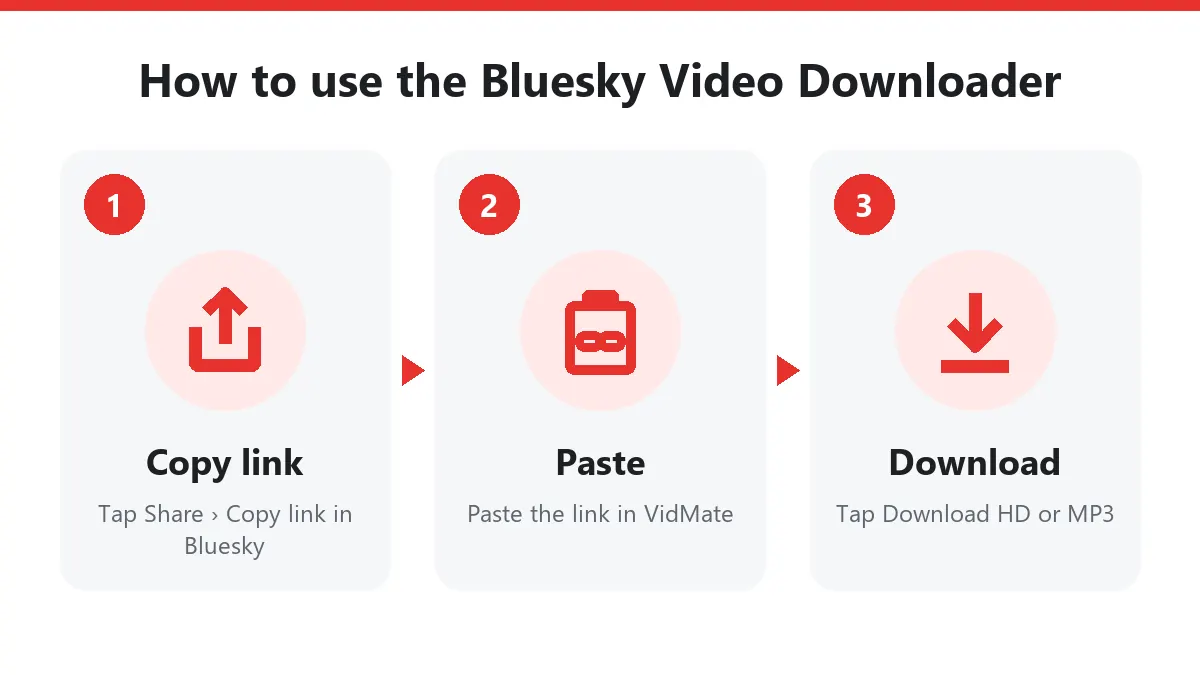
Download Bluesky videos in three steps
- On the post tap Share › Copy link to post (a
bsky.applink). - Paste it into this Bluesky video downloader.
- Tap Download HD to save Bluesky video files in up to 1080p.
On iPhone, open Files › Downloads and choose Share › Save Video. On a PC, click the post’s timestamp and copy the address bar.
Bluesky MP4 from HLS streams
Bluesky’s video service splits each upload into HLS segments at two quality levels. The Bluesky video downloader joins the segments into one Bluesky MP4 without re-encoding, so you get the same picture Bluesky plays, with sound.
Keep your account safe
Some tools ask for your handle and app password to download Bluesky videos. An app password lets a service read and post as you, so never share it. This Bluesky downloader only needs the public bsky.app link.
Who downloads Bluesky videos?
Journalists archiving clips from sources, creators keeping their own uploads (Bluesky has no video export), and people moving content between networks with credit. The Bluesky video downloader is free and stores nothing.
Frequently asked questions
Do I need a Bluesky account?
No. Public posts can be read without an account, so the downloader works without logging in.
What is the maximum quality?
Bluesky keeps videos up to 1080p, plus a 720p version and smaller ones for slow connections.
Can I use a link from a third-party Bluesky app?
Use the bsky.app address. Other apps show the same post, but their links have different formats.
Do I need an app password for the Bluesky video downloader?
No. Public posts need no login. Never give your Bluesky app password to any downloader.
What quality does the Bluesky video downloader save?
Up to 1080p. Bluesky keeps two HLS levels per video and Download HD takes the larger one.